.
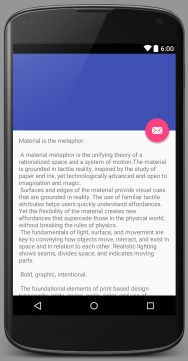
104-Android Studio 1.5 Scrolling Activity Template
Continue from Tutorial 103
|
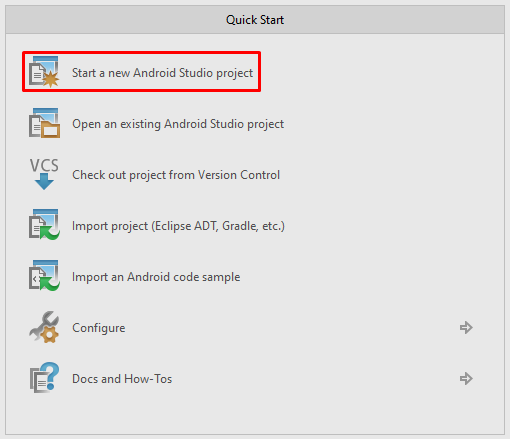
1) Create New Project
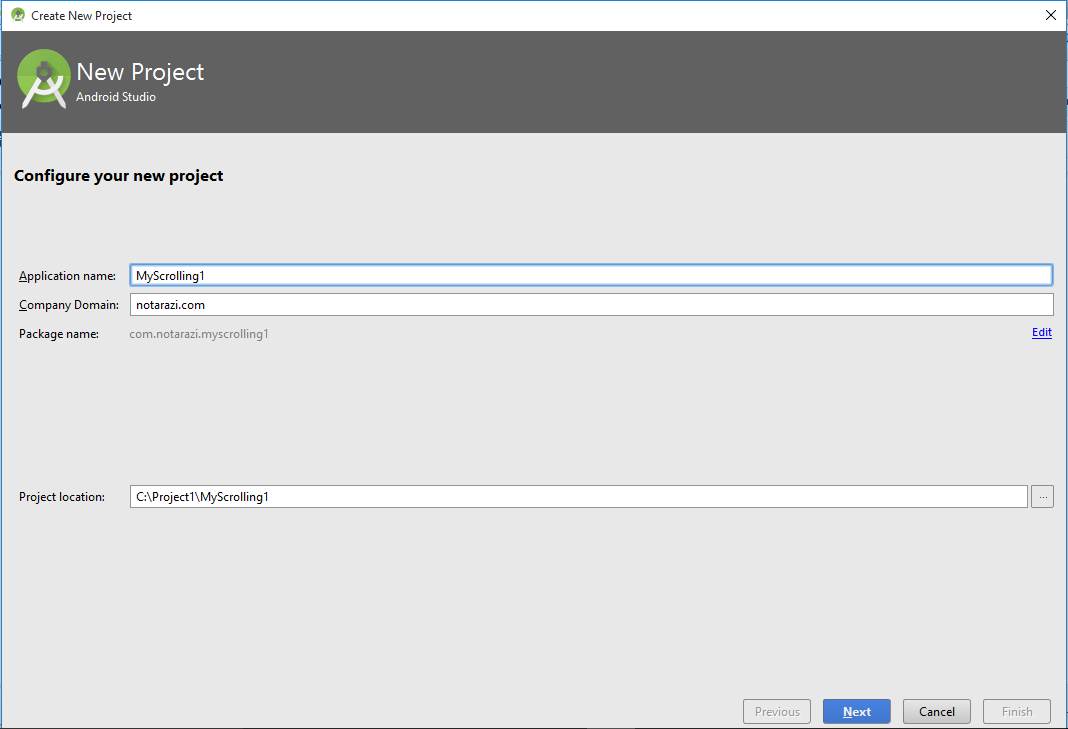
1.1) Configure New Project
Application Name: MyScrolling1
Company Domain: notarazi.com
Package Name: com.notarazi.myscrolling1 (auto-generated)
Project Location: C:\Project1\MyScrolling1\ (auto-generated)
1.2) Select Target Device

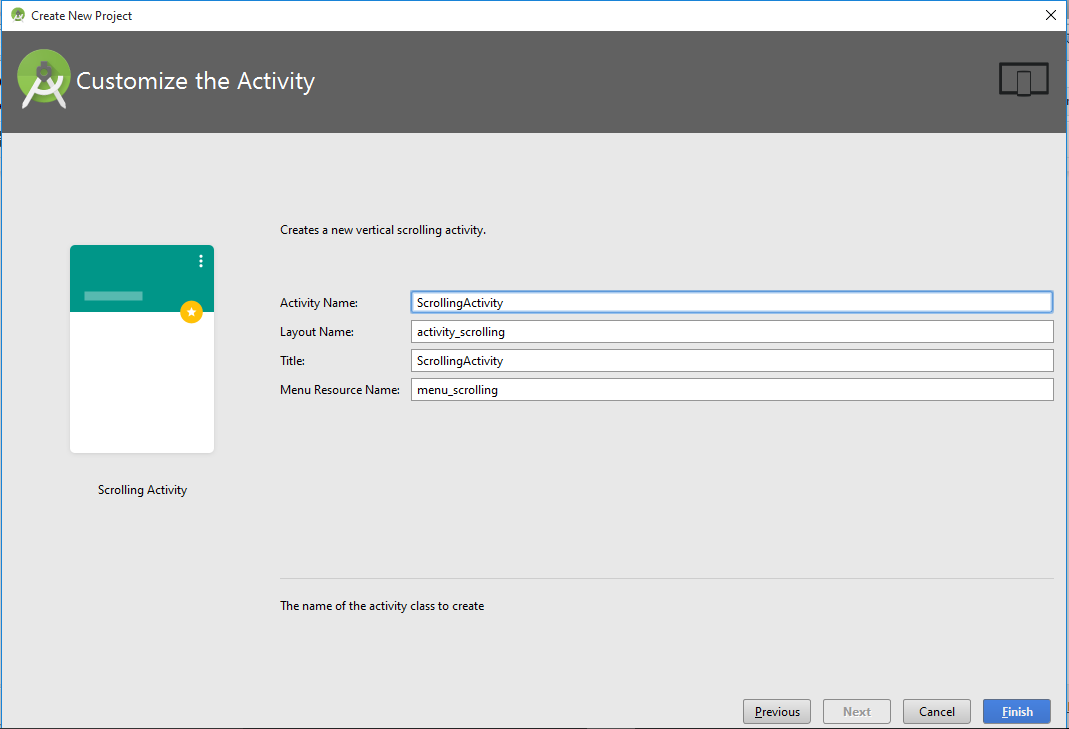
1.3) Add Activity
Select Scrolling Activity.
2) Observe the project codes
2.1) MainActivity.java
package com.notarazi.myscrolling1;
import android.os.Bundle;
import android.support.design.widget.FloatingActionButton;
import android.support.design.widget.Snackbar;
import android.support.v7.app.AppCompatActivity;
import android.support.v7.widget.Toolbar;
import android.view.View;
import android.view.Menu;
import android.view.MenuItem;
public class ScrollingActivity extends AppCompatActivity {
@Override
protected void onCreate(Bundle savedInstanceState) {
super.onCreate(savedInstanceState);
setContentView(R.layout.activity_scrolling);
Toolbar toolbar = (Toolbar) findViewById(R.id.toolbar);
setSupportActionBar(toolbar);
FloatingActionButton fab = (FloatingActionButton) findViewById(R.id.fab);
fab.setOnClickListener(new View.OnClickListener() {
@Override
public void onClick(View view) {
Snackbar.make(view, "Replace with your own action", Snackbar.LENGTH_LONG)
.setAction("Action", null).show();
}
});
}
@Override
public boolean onCreateOptionsMenu(Menu menu) {
// Inflate the menu; this adds items to the action bar if it is present.
getMenuInflater().inflate(R.menu.menu_scrolling, menu);
return true;
}
@Override
public boolean onOptionsItemSelected(MenuItem item) {
// Handle action bar item clicks here. The action bar will
// automatically handle clicks on the Home/Up button, so long
// as you specify a parent activity in AndroidManifest.xml.
int id = item.getItemId();
//noinspection SimplifiableIfStatement
if (id == R.id.action_settings) {
return true;
}
return super.onOptionsItemSelected(item);
}
}
|
2.2) res/layout/activity_main.xml
<?xml version="1.0" encoding="utf-8"?>
<android.support.design.widget.CoordinatorLayoutxmlns:android="http://schemas.android.com/apk/res/android"
xmlns:app="http://schemas.android.com/apk/res-auto"
xmlns:tools="http://schemas.android.com/tools"
android:layout_width="match_parent"
android:layout_height="match_parent"
android:fitsSystemWindows="true"
tools:context="com.notarazi.myscrolling1.ScrollingActivity">
<android.support.design.widget.AppBarLayout
android:id="@+id/app_bar"
android:layout_width="match_parent"
android:layout_height="@dimen/app_bar_height"
android:fitsSystemWindows="true"
android:theme="@style/AppTheme.AppBarOverlay">
<android.support.design.widget.CollapsingToolbarLayout
android:id="@+id/toolbar_layout"
android:layout_width="match_parent"
android:layout_height="match_parent"
android:fitsSystemWindows="true"
app:contentScrim="?attr/colorPrimary"
app:layout_scrollFlags="scroll|exitUntilCollapsed">
<android.support.v7.widget.Toolbar
android:id="@+id/toolbar"
android:layout_width="match_parent"
android:layout_height="?attr/actionBarSize"
app:layout_collapseMode="pin"
app:popupTheme="@style/AppTheme.PopupOverlay" />
</android.support.design.widget.CollapsingToolbarLayout>
</android.support.design.widget.AppBarLayout>
<include layout="@layout/content_scrolling" />
<android.support.design.widget.FloatingActionButton
android:id="@+id/fab"
android:layout_width="wrap_content"
android:layout_height="wrap_content"
android:layout_margin="@dimen/fab_margin"
android:src="@android:drawable/ic_dialog_email"
app:layout_anchor="@id/app_bar"
app:layout_anchorGravity="bottom|end" />
</android.support.design.widget.CoordinatorLayout>
|
2.3) res/layout/content_scrolling.xml
<?xml version="1.0" encoding="utf-8"?>
<android.support.v4.widget.NestedScrollViewxmlns:android="http://schemas.android.com/apk/res/android"
xmlns:app="http://schemas.android.com/apk/res-auto"
xmlns:tools="http://schemas.android.com/tools"
android:layout_width="match_parent"
android:layout_height="match_parent"
app:layout_behavior="@string/appbar_scrolling_view_behavior"
tools:context="com.notarazi.myscrolling1.ScrollingActivity"
tools:showIn="@layout/activity_scrolling">
<TextView
android:layout_width="wrap_content"
android:layout_height="wrap_content"
android:layout_margin="@dimen/text_margin"
android:text="@string/large_text" />
</android.support.v4.widget.NestedScrollView>
|
DOWNLOAD
.

I don't see menu_scrolling
ReplyDeleteThank you for sharing your knowledge and experience. I truly appreciate this informative post.servicenow online training
ReplyDeleteAn Ab Initio course online allows learners to develop ETL and data integration skills through flexible online learning. This ab initio course online covers graph creation, data processing, workflow design, metadata management, and optimization techniques. Students gain practical experience through hands-on projects.
ReplyDelete