.
Profile Page With Circular Image View
Using Android Studio 1.4
1) Create a new Empty Project
Project Name: MyProfile
Activity Template: Empty Activity
Activity Name: MyProfile
Layout Name: activity_myprofile


2) Add Dependencies Item
apply plugin: 'com.android.application'
android {
compileSdkVersion 23
buildToolsVersion "23.0.1"
defaultConfig {
applicationId "com.notarazi.myprofile"
minSdkVersion 14
targetSdkVersion 23
versionCode 1
versionName "1.0"
}
buildTypes {
release {
minifyEnabled false
proguardFiles getDefaultProguardFile('proguard-android.txt'), 'proguard-rules.pro'
}
}
}
dependencies {
compile fileTree(dir: 'libs', include: ['*.jar'])
testCompile 'junit:junit:4.12'
compile 'com.android.support:appcompat-v7:23.1.0'
compile 'com.joooonho:selectableroundedimageview:1.0.1'
}
|
3) Edit Resource
3.1) Add image to drawable folder
res/drawable/photo.png

3.2) Edit Layout (add Circular Image View)
res/layout/activity_my_profile.xml
<?xml version="1.0" encoding="utf-8"?>
<RelativeLayout xmlns:android="http://schemas.android.com/apk/res/android"
xmlns:tools="http://schemas.android.com/tools"
xmlns:app="http://schemas.android.com/apk/res-auto"
android:layout_width="match_parent"
android:layout_height="match_parent"
android:paddingLeft="@dimen/activity_horizontal_margin"
android:paddingRight="@dimen/activity_horizontal_margin"
android:paddingTop="@dimen/activity_vertical_margin"
android:paddingBottom="@dimen/activity_vertical_margin"
tools:context=".MyProfile">
<ScrollView xmlns:android="http://schemas.android.com/apk/res/android"
xmlns:tools="http://schemas.android.com/tools"
android:layout_width="match_parent"
android:layout_height="match_parent"
android:orientation="vertical" >
<LinearLayout
android:layout_width="match_parent"
android:layout_height="match_parent"
android:orientation="vertical" >
<com.joooonho.SelectableRoundedImageView
android:layout_width="120dp"
android:layout_height="120dp"
android:layout_gravity="center"
android:scaleType="centerCrop"
android:src="@drawable/photo"
app:sriv_border_color="#FFCC00"
app:sriv_border_width="2dp"
app:sriv_oval="true" />
</LinearLayout>
</ScrollView>
</RelativeLayout>
|
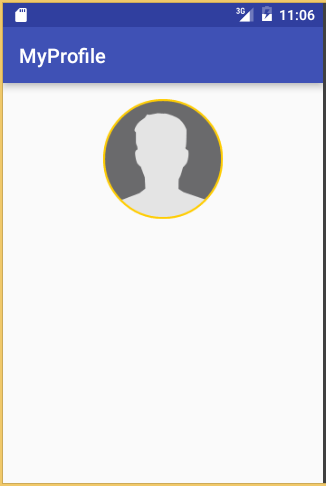
OUTCOME.
DOWNLOAD
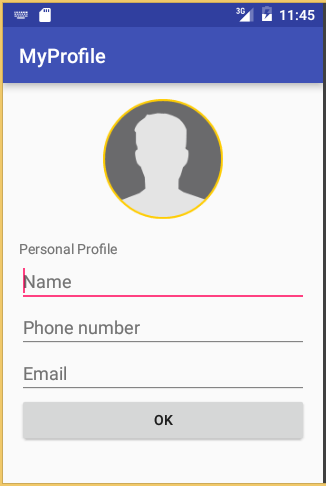
3.3) Edit Layout (add Profile Fields)
<?xml version="1.0" encoding="utf-8"?>
<RelativeLayout xmlns:android="http://schemas.android.com/apk/res/android"
xmlns:tools="http://schemas.android.com/tools"
xmlns:app="http://schemas.android.com/apk/res-auto"
android:layout_width="match_parent"
android:layout_height="match_parent"
android:paddingLeft="@dimen/activity_horizontal_margin"
android:paddingRight="@dimen/activity_horizontal_margin"
android:paddingTop="@dimen/activity_vertical_margin"
android:paddingBottom="@dimen/activity_vertical_margin"
tools:context=".MyProfile">
<ScrollView xmlns:android="http://schemas.android.com/apk/res/android"
xmlns:tools="http://schemas.android.com/tools"
android:layout_width="match_parent"
android:layout_height="match_parent"
android:orientation="vertical" >
<LinearLayout
android:layout_width="match_parent"
android:layout_height="match_parent"
android:orientation="vertical" >
<com.joooonho.SelectableRoundedImageView
android:layout_width="120dp"
android:layout_height="120dp"
android:layout_gravity="center"
android:scaleType="centerCrop"
android:src="@drawable/photo"
app:sriv_border_color="#FFCC00"
app:sriv_border_width="2dp"
app:sriv_oval="true" />
<TextView
android:layout_width="match_parent"
android:layout_height="match_parent"
android:layout_marginTop="20dp"
android:text="Personal Profile"/>
<EditText
android:layout_width="match_parent"
android:layout_height="match_parent"
android:inputType="text"
android:hint="Name"/>
<EditText
android:layout_width="match_parent"
android:layout_height="match_parent"
android:inputType="phone"
android:hint="Phone number"/>
<EditText
android:layout_width="match_parent"
android:layout_height="match_parent"
android:inputType="textEmailAddress"
android:hint="Email"/>
<Button
android:layout_width="match_parent"
android:layout_height="match_parent"
android:text="OK"
/>
</LinearLayout>
</ScrollView>
</RelativeLayout>
|
OUTCOME.
DOWNLOAD
REFERENCES
Original Project:http://www.devexchanges.info/2015/10/tip-shapebordercircle-image-in-android.html
Original Master Codes: RoundImageSample-master.zip

Hi! What is the code for storing the user input and showing it afterwards in the editText?
ReplyDeletenice
ReplyDeleteI learned some valuable tips from this post. Thanks for making the topic so accessible.workday hr training
ReplyDeleteAn Ab Initio course provides structured learning for professionals who want to build expertise in ETL and enterprise data integration. This ab initio course covers graph design, components, data processing, workflows, and deployment concepts. Learners gain practical knowledge through industry-focused projects.
ReplyDeleteNice article! An IT Training Institute in Hyderabad can be a good choice for learning in-demand technologies and improving career prospects.IT Training institute in hyderabad
ReplyDelete